
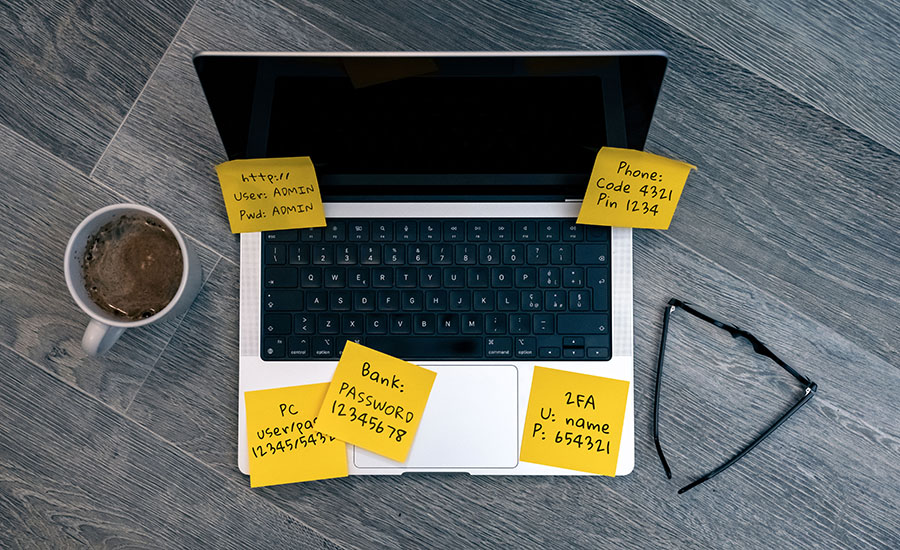
Most of us don't think about passwords until something goes wrong-like a locked account or a suspicious login. But these days, you need a password for everything from online banking to fast food apps.
So, it’s no wonder that roughly seven in ten Americans (69%) say they feel overwhelmed by the number of passwords they have to keep track of. Managing all those passwords is a headache, but the stakes are high. Billions of passwords are compromised each year—often not because of major data breaches, but due to disorganized everyday habits. About 35% of people say a weak password led to the issue, while 30% say they reused the same password across multiple accounts.
So, it’s less of a security issue and more of an organizational issue.
The Password Organization Problem
Scattering passwords across notebooks, browsers, old emails, and mental notes makes it harder to keep track of what's safe. Unfortunately, that also makes it easier for things to slip through the cracks.
Password security requires "strong" passwords, as well as a system for organizing, changing, and generating them across multiple accounts. Too many of us, overwhelmed by the sheer volume and complexity of password management, end up reusing them or favoring easy-to-remember combinations.
But that is like leaving the door unlocked-or wide open-to hackers. And once one account is compromised, your other accounts are at risk-especially if you reuse passwords.
Step 1: Take Inventory
Before you can organize anything, you need to know what you're working with. Begin with the accounts you use most often: your primary email, financial accounts, and any apps you log into regularly. From there, work outward and let your existing tools do the work:
- Check your saved passwords in your browser or phone settings
- Search your email inbox for phrases like “welcome,” “verify your account,” or “reset your password”
- Review your bank and credit card statements to spot subscriptions or services you may have forgotten
- Scroll through your phone and take note of apps that require a login. If you had to sign in at some point, chances are there's a password attached to it.
Do your best to catalog as many password-protected logins as possible, but don't sweat about getting all of them. Even a partial inventory is a big step toward better organization.
Step 2: Stop Reusing Passwords
A 2024 study by password management brand NordPass found that the average person manages around 170 passwords, more than double the figure reported in 2020. Human brains simply aren't built for that, so it's no surprise that many of us fall into the habit of reusing passwords. It's common-and it's risky.
Reusing a password increases your exposure. If one password is compromised, scammers can use it to try to log in to other accounts-a tactic known as credential stuffing-creating a domino effect that spreads quickly from one account to many.
And before you ask, making small tweaks-like changing a number or adding a symbol-doesn't offer much protection. Those patterns are easy for automated tools to guess.
Step 3: Use a Password Manager
Trying to remember over a hundred unique passwords isn't realistic. We are not computers; we are humans, and our human brains need password managers.
A password manager is a secure tool that stores your login information and can generate strong, unique passwords for each account. So, instead of remembering dozens (or hundreds) of passwords, you only need to remember one master password.
People have lots of reasons for avoiding password managers-it feels too complicated, it costs too much, or it seems risky to store everything in one place. But without a system, most people fall back on weak or reused passwords-making it much easier for scammers to gain access to multiple accounts.
There are plenty of reputable password managers available, both paid and free. Popular paid options like 1Password, Keeper, and Dashlane are known for balancing security with ease of use and cross-device syncing. There are also strong free options, including Bitwarden and the free versions of Proton Pass, RoboForm, and NordPass.
Step 4: Ditch Your Browser Password Manager
Most browsers-like Chrome or Safari-offer built-in password managers. They are convenient, but they rely on your device's security. So, if your device or user account is compromised, those saved credentials can be more vulnerable to access by malware or other threats.
Browser password managers are also limited in portability. If you switch devices, use a different browser, or need access in another environment, your passwords may not follow you.
That said, browser-based password managers are better than no password manager (or reusing the same login everywhere).
If you choose to use a browser-based password manager, add an extra layer of protection by enabling PIN or biometric authentication (like fingerprint or face recognition). That way, even if someone gains access to your device, your passwords stay protected.
Step 5: Turn On Multi-Factor Authentication (MFA)
As careful as you may be, even strong passwords can be compromised. So, the experts at the Cybersecurity & Infrastructure Security Agency (CISA) recommend using multi-factor authentication (MFA) whenever possible. MFA adds an extra layer of protection by requiring a second verification step—like a code sent to your phone or generated by an app.
Speaking of which, remember: verification codes should never be shared. No legitimate company will ask you to send them your code. If you ever receive a phone call from someone claiming to be from Maps asking for a code sent to your phone, it’s a scam.
Step 6: Review and Update Regularly
Once you have a system in place, revisit it occasionally to make sure your passwords remain strong, secure, and up to date.
For high-risk accounts-like your financial, health, and email accounts-review and consider updating your passwords every 3 to 6 months. For low-risk accounts-like streaming platforms or restaurant apps-a password reset every 1 to 2 years should be sufficient. While you review, delete any accounts or apps you no longer use. A quick check-in every few months can make a big difference.
Outside of those regular check-ins, if you notice anything unusual, change your passwords right away—especially if there’s a breach. Of course, good password habits are just one piece of the cybersecurity puzzle. It’s also smart to avoid sharing passwords or verification codes, be cautious of unexpected messages or requests for personal information, and think twice before logging into sensitive accounts on public Wi-Fi. Keep your devices protected against malware and other threats with automatic updates, and—even with auto-updates enabled—it’s worth checking in periodically to make sure everything is current.